





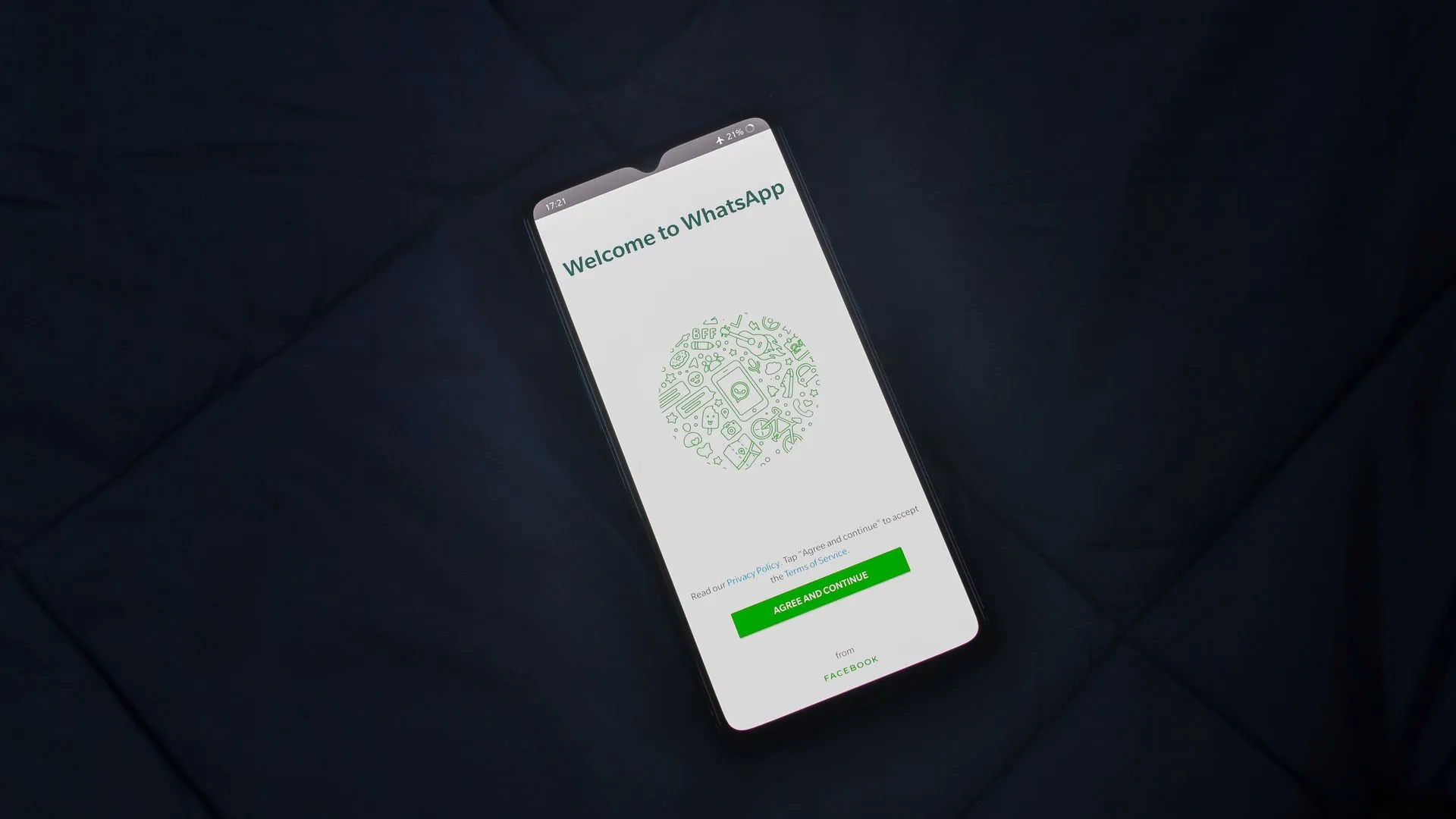
How to Clear WhatsApp Storage on Android: 6 Methods That Actually Work
How to Clear WhatsApp Storage on Android: 6 Methods That Actually Work
If your phone keeps nagging you about running out of space, there is a good chance WhatsApp is the culprit. On many Android phones, the app quietly swallows 5, 10, even 20 gigabytes over a few years, and most of that space is taken up by videos you watched once, memes you laughed at and forgot, and voice notes you will never listen to again. Learning how to clear WhatsApp storage on Android is one of the fastest ways to get your phone breathing again, and the good news is that WhatsApp now has built-in tools that make the whole job take about ten minutes.
I have walked a few friends through this on their own phones, and every single time they were shocked at what WhatsApp was holding. One friend recovered almost 9 GB from a single family group chat. Here is exactly how to do it, step by step, without losing chats or the photos you actually want to keep.
Why WhatsApp Eats So Much Storage on Android
WhatsApp saves everything by default. Every photo, video, document, and voice note you send or receive gets stored twice: once inside the app and once in your phone’s gallery and file system. Group chats are the worst offenders because every member’s birthday video, holiday montage, and good-morning image lands on your phone automatically.
Most people also never touch WhatsApp’s auto-download settings, which means the app has been silently stockpiling media since the day it was installed. A single one-minute video can be 15 to 30 MB, and a busy group can receive dozens of those a day. Do the math over two or three years and you can see how the number balloons into the gigabytes.
Method 1: Use WhatsApp’s Built-In Storage Manager
This is the fastest and safest way to learn how to clear WhatsApp storage on Android, because WhatsApp itself shows you exactly what is taking up space and lets you delete it in bulk.
- Open WhatsApp and tap the three-dot menu in the top-right corner.
- Tap Settings, then Storage and data.
- Tap Manage storage at the top of the screen.
- You will see a storage bar showing how much space WhatsApp uses and how much is free on your phone, plus two smart categories: Larger than 5 MB and Frequently forwarded.
- Tap Larger than 5 MB. This lists the biggest files on your phone, sorted by size, so you can delete the largest space hogs first.
- Select the files you do not need (tap to preview, long-press to select, then use the select-all icon), and tap the trash icon.
The “Larger than 5 MB” filter skips all the small messages and lets you focus on the files that actually matter. Deleting just the videos in this view recovers most of the wasted space. For a broader cleanup beyond WhatsApp, see our guide on how to free up space on Android without deleting photos.
Method 2: Delete Frequently Forwarded Media
Still inside Manage storage, you will see a Frequently forwarded section. These are the viral videos and memes passed around many times, which means two things: they are usually files you do not care about, and if you ever want one back, you can probably get it from any friend.
Tap this category, review the thumbnails, select what you want gone, and delete. It is the lowest-risk cleanup in the whole app because almost nothing here is unique or irreplaceable.
Method 3: Clean Up Individual Chats
Sometimes the problem is not random files but one or two specific conversations. That family group with 300 members, or the friend who sends you ten videos a day. WhatsApp lets you target these directly.
- Inside Manage storage, scroll down to the chat list, which is sorted with the most storage-hungry chats at the top.
- Tap the chat that is using the most space. You will see all of its media sorted from largest to smallest.
- Select the bulky files and delete them. Your messages and smaller photos stay untouched.
You can also do this from inside the chat itself: open the conversation, tap the contact or group name at the top, choose Media, links and docs, and delete from there. If you accidentally delete a photo you actually wanted, check our guide on how to recover deleted photos on Android without backup before assuming it is gone.
Method 4: Clear WhatsApp’s Cache (Not Your Chats)
There is an important difference between clearing an app’s cache and clearing its storage, and mixing them up is how people accidentally log themselves out. Clearing the cache only removes temporary files and is completely safe. Clearing storage (or “data”) wipes everything, including your login.
To clear the cache safely:
- Open your phone’s Settings and go to Apps (or Apps & notifications).
- Find and tap WhatsApp.
- Tap Storage & cache.
- Tap Clear cache. Do NOT tap Clear storage or Clear data unless you have a fresh backup and are ready to set WhatsApp up again.
Cache clearing usually recovers a few hundred megabytes, sometimes more if you have never done it. It also tends to make the app feel snappier. Do it once a month as maintenance.
Method 5: Turn Off Auto-Download So It Stops Filling Up
Cleaning once is fine, but storage will creep back unless you stop the flood at the source. WhatsApp’s auto-download settings are the main reason the problem returns.
- Go to WhatsApp Settings, then Storage and data.
- Under Media auto-download, you will see three rows: When using mobile data, When connected to Wi-Fi, and When roaming.
- Tap each one and uncheck everything, or leave only Photos checked if you still want images to arrive automatically.
- Go back and tap Media upload quality. Switching to Standard quality keeps future downloads much smaller.
With auto-download turned off, media arrives as a thumbnail that you tap to download only when you want it. Group chats keep working exactly the same, but your phone stops silently hoarding every video. For more ways to keep the phone running smoothly, see our fix for WiFi that keeps disconnecting on Android, since a flaky connection can also stall downloads and backups.
Method 6: Back Up, Then Delete Big Media Permanently
If you have media you want to keep but do not need on your phone, archive it elsewhere first. In WhatsApp, go to Settings, Chats, Chat backup and back up to Google Drive. For photos and videos specifically, copy the WhatsApp/Media folder to a computer or cloud drive first, then delete the local copies through Manage storage.
Do the review in Manage storage rather than a file manager, because deleting files directly from the WhatsApp folder sometimes leaves broken thumbnails in the app. The in-app tool keeps the app’s index consistent.
What NOT to Do When Clearing WhatsApp Storage
A few warnings from experience. First, never tap “Clear storage” or “Clear data” in your phone’s app settings thinking it is the same as clearing cache. It signs you out of WhatsApp and deletes your local message history. Second, do not delete the entire WhatsApp/Media folder from a file manager, since that breaks thumbnails and downloaded-file references. Third, always back up before any big deletion round if you are unsure. A two-minute backup can save you from real regret.
Frequently Asked Questions
Will clearing WhatsApp storage delete my chats?
No, as long as you use the Manage storage tool inside WhatsApp. It deletes media files but keeps your text conversations intact. The only way to lose chats is by clearing the app’s data in Android Settings or uninstalling the app without a backup.
How much space can clearing WhatsApp storage free up?
It varies wildly. Light users might recover a few hundred megabytes, while heavy group-chat users often get back 5 to 15 GB. The first time you do it is usually the most dramatic, and the difference is immediate on most phones.
Why does WhatsApp storage keep getting full again?
Because auto-download is still on. Unless you disable it using Method 5 above, every group chat continues to quietly refill your storage with new media. Turning off auto-download is the only lasting fix.
Does deleting media in WhatsApp delete it from my gallery too?
Not always. WhatsApp’s Manage storage tool removes the app’s copy, but photos and videos that were already saved to your gallery or Google Photos may still exist there. Check both places if you want the space fully back.
Conclusion
Figuring out how to clear WhatsApp storage on Android takes about ten minutes the first time. Start with the built-in Manage storage tool, knock out the “Larger than 5 MB” files, clear the forwarded junk, and then turn off auto-download so the problem does not come back. Do the cache clear as monthly maintenance, and you will probably never see that “storage full” warning again.


One thought on “How to Clear WhatsApp Storage on Android: 6 Methods That Actually Work”