





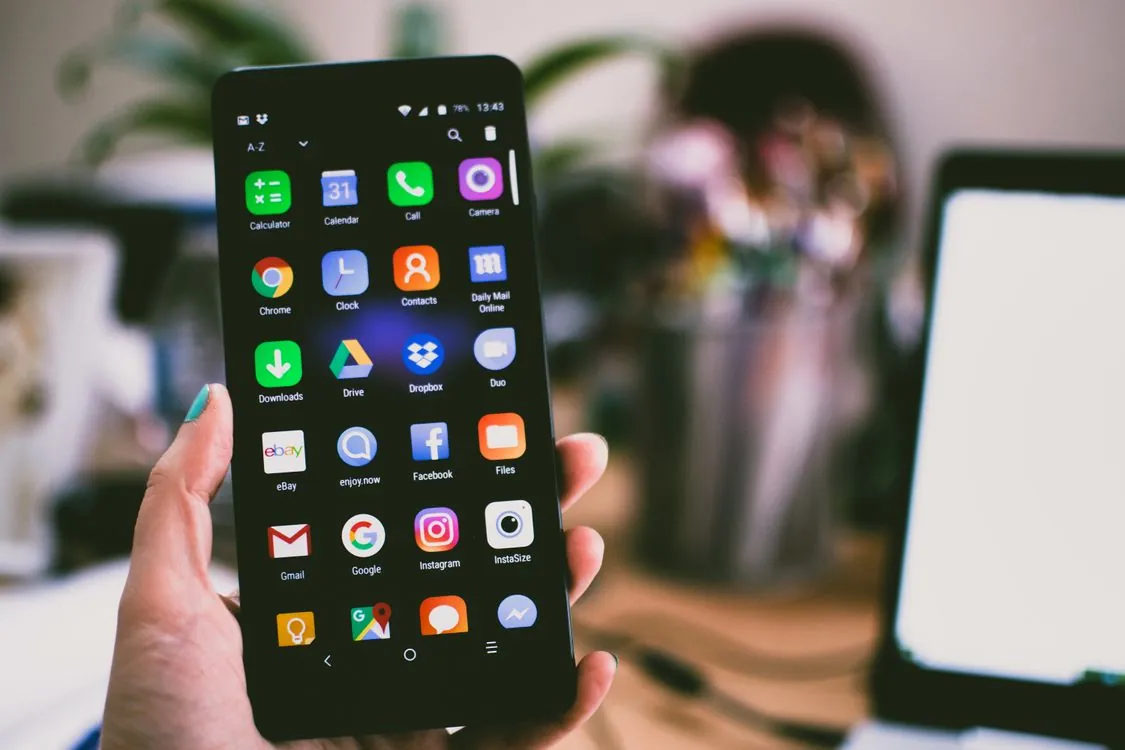
How to Free Up Space on Android Without Deleting Photos
There is a special kind of dread when your phone flashes “Storage almost full” as you try to take a picture. The instinct is to start deleting photos, and that feels terrible. Nobody wants to pick between last summer’s beach shots and this weekend’s birthday photos because their phone is bloated with junk they never asked for.
Here is the good news: learning how to free up space on android without deleting photos is entirely doable, and it usually takes less than half an hour. Your photos are rarely the real problem. In most cases, they are a small fraction of what is filling your storage. The real culprits are cached data, forgotten downloads, WhatsApp media you never look at twice, and streaming apps quietly hoarding gigabytes offline.
Below are seven methods that actually work, ordered from the biggest wins down to the finishing touches. You do not need all of them. Most people reclaim 5 to 20GB with just the first three.
Back Up Your Photos to Google Photos, Then Let It Clear the Local Copies
This is the single biggest win, and it makes everything else safe. Google Photos gives every Google account 15GB of free storage (shared with Drive and Gmail), and its Storage saver setting compresses photos to 16MP and video to 1080p. On a phone screen, you will not see a difference.
First, turn on backup. Open Google Photos, tap your profile picture, then go to Photos settings > Backup and switch backup on. Under Backup quality, choose Storage saver instead of Original quality to stretch that free 15GB.
Once the profile screen says “Backup complete”, tap Free up space in the same settings area. This removes the local copies of photos and videos that are already safely backed up, while the cloud versions stay visible in your gallery exactly as before. Tap any photo and it re-downloads in seconds.
One caution: Google Photos keeps deleted items in its trash for 60 days, and they still count against your storage. For instant gains, go to Library > Trash > Empty trash. Realistic reclaim here: 3 to 15GB. If you exhaust the free 15GB, Amazon Photos gives Prime members unlimited full-resolution photo storage, and Dropbox can auto-upload your camera roll too.
Clear App Cache: The Fastest Gigabytes You Will Ever Reclaim
Every app stores temporary files called cache: thumbnails, previews, half-loaded pages. Over months, it piles up. Clearing it is safe, takes seconds per app, and never touches your photos, messages, or logins.
On Samsung Galaxy, Google Pixel, and most other phones, the path is Settings > Apps > [app name] > Storage > Clear cache. Hit the heavy users: Chrome, Instagram, TikTok, Facebook, and any shopping app you browse often. A single social app can hold 1 to 3GB of cache after a year.
The critical distinction: Clear cache removes only temporary files. Clear data (sometimes called Clear storage) resets the app completely, wiping logins, settings, and downloads. Never tap Clear data when you only mean to clear cache.
Realistic reclaim: 1 to 5GB. Repeat every few months.
Tame WhatsApp: Stop Group Chats From Eating Your Storage Silently
If you use WhatsApp daily, it is almost certainly one of your biggest storage hogs, and it fills up without asking. Every meme in the family group, every video in the neighborhood chat, every voice note you heard once: saved to your phone automatically.
Open WhatsApp > Settings > Storage and data > Manage storage. This screen shows total WhatsApp usage broken down chat by chat, biggest offenders first. You can bulk-delete large files and forwarded media per chat. Clearing out a few hyperactive group chats can free 2 to 8GB in one sitting.
Then stop the bleeding. In the same Storage and data menu, tap Media auto-download and turn it off (or set it to Wi-Fi only) for photos, audio, video, and documents. Media then downloads only when you tap it, so your storage stops growing on autopilot. While you are at it, if your connection has been flaky, here is how to fix WiFi that keeps disconnecting on Android, because a bad connection makes re-downloading cloud photos painfully slow.
How to Free Up Space on Android Without Deleting Photos Using Files by Google
Files by Google is a free app most people have preinstalled and never open. Think of it as a storage detective. Open it, tap the Clean tab, and it lists safe-to-delete categories: junk files, duplicate files, large files, unused apps, and old screenshots.
Work through the cards. “Large files” is usually the goldmine: forgotten video downloads, screen recordings, and APK installers you no longer need. “Duplicate files” catches the same photo saved twice by different apps. “Unused apps” lists apps you have not opened in months with their sizes shown, so you can uninstall with confidence.
The app also breaks storage down by type, telling you where to focus. Ten minutes here typically frees 2 to 10GB, and none of it involves your photo library.
Attack the Hidden Storage Hogs: Downloads, Streaming, and the .thumbnails Folder
Some hogs hide where you rarely look:
Your Downloads folder. Open Files by Google > Browse > Downloads. Old PDFs, installers, and one-time email attachments live here forever. Delete freely.
Streaming app downloads. In Spotify, go to Settings > Storage and clear offline playlists and episodes you no longer play. In Netflix, delete finished series from Downloads and make sure Smart Downloads is not silently refilling your phone. YouTube offline videos and podcast apps deserve the same audit. Offline media routinely eats 3 to 10GB.
The .thumbnails folder. Inside DCIM sits a hidden folder called .thumbnails where Android stores preview images. It can balloon past 1GB. In Files by Google, enable “Show hidden files” in settings, open DCIM > .thumbnails, and delete its contents. It is completely safe: Android rebuilds what it needs.
Screenshots. These pile up in DCIM > Screenshots. A quick manual pass takes two minutes.
Move the Overflow to a microSD Card
If your phone has a microSD slot (many Samsung Galaxy and Motorola models do; Google Pixel phones do not), a SanDisk card is the cheapest way to add 64GB or 128GB of breathing room. Insert the card, then go to Settings > Storage and pick how to use it.
Portable storage treats the card like a USB drive: move photos, videos, and documents onto it, and pop it into another device later. Adoptable (internal) storage formats the card as part of the phone itself, which lets you move apps onto it too, but the card becomes locked to that phone. For most people, portable storage plus moving DCIM and Downloads to the card is the sweet spot: a ten-minute job that permanently adds space.
Cut Future Bloat Before It Starts
Once you have reclaimed your gigabytes, keep them with three habits. Keep Google Photos backup on from day one on every new phone, so local copies never pile up again. Leave WhatsApp media auto-download off permanently; you will not miss it. And run Files by Google’s Clean tab once a month. Two minutes, and you will never see that “Storage full” warning again. If you juggle two phones and the other one is an iPhone acting sluggish, this guide on why your iPhone battery might be draining so fast covers the most common culprits.
Frequently Asked Questions
Will clearing app cache delete my photos?
No. Cache is temporary data like thumbnails that apps rebuild on their own. Photos, messages, downloads, and logins are untouched. Just tap Clear cache, not Clear data.
Does “Free up space” in Google Photos delete my backed-up photos?
No. It only removes local copies after confirming they are safely backed up to your Google account. Photos stay visible in Google Photos and can be re-downloaded anytime.
Why is my storage still full after I deleted a bunch of photos?
Three usual suspects: Google Photos trash holds deleted items for 60 days (empty it manually), the hidden .thumbnails folder in DCIM keeps growing, and app data plus WhatsApp media quietly refill the space. Check Settings > Storage to see what is actually using it.
Can I move apps to an SD card to free up space?
On phones with a microSD slot, yes, if you format the card as internal (adoptable) storage under Settings > Storage. Some apps refuse to move and the card becomes tied to that phone, so portable storage is the safer first step.
Conclusion
You do not have to sacrifice a single photo to fix a full phone. Back up with Google Photos and let it clear local copies, sweep out app cache, put WhatsApp’s auto-downloads on a leash, and let Files by Google find the junk you forgot about. Those four moves free 5 to 20GB for most people in under an hour, and a two-minute monthly check keeps it that way.
Your photos stay exactly where they belong: backed up, accessible, and taking up zero space on your phone. That “Storage almost full” warning? You are done seeing it.

3 thoughts on “How to Free Up Space on Android Without Deleting Photos”