





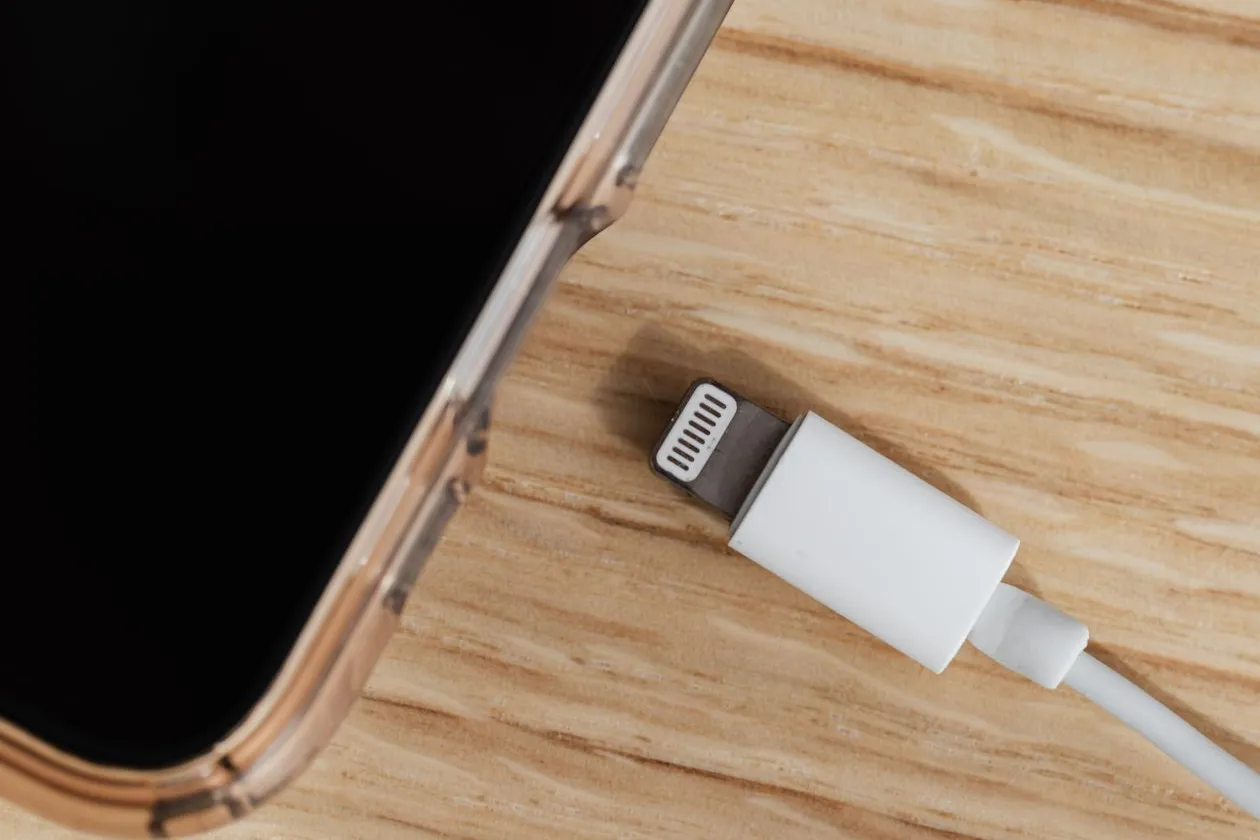
Why Is My iPhone Battery Draining So Fast? 12 Fixes
You unplug your iPhone at 100%, check a few messages, scroll for ten minutes, and somehow it is already at 82%. If you have ever typed “why is my iPhone battery draining so fast” into Google, you are far from alone. The answer is almost never one thing. It is a stack of small drains adding up, and most fixes take under two minutes each.
1. Find out exactly what is draining it: Settings > Battery
Before changing anything, look at the data. Go to Settings > Battery and scroll to Battery Usage By App. Look for any app with big Background Activity numbers that you barely open: a rogue app, possibly crashing and restarting in a loop. Fix: Settings > General > Background App Refresh, toggle that app off. One rogue social app can easily eat 30 to 40% of a day’s battery all by itself.
2. Why your iPhone battery drains so fast after an iOS update
Did this start right after an iOS update? That timing is not a coincidence, and it is not a bug either. After every update, your iPhone spends 24 to 48 hours re-indexing photos, files, messages, and Spotlight data while the battery system recalibrates. Faster drain during that window is completely normal. Plug in overnight, stay on WiFi, and give it two full days. Also install updates at night while charging: Apple ships battery optimizations in nearly every release, and an outdated iOS (Settings > General > Software Update) drains faster than it should.
3. Turn off Background App Refresh for apps that do not need it
Background App Refresh lets apps fetch new content when you are not using them. A podcast app downloading episodes needs this. A shopping app from two years ago does not. Go to Settings > General > Background App Refresh and be ruthless: toggle it off entirely, or disable it app by app, keeping it on for three or four apps you genuinely rely on. You will not feel any difference in daily use, and this is one of the biggest battery savers most people can make.
4. Your screen brightness is doing more damage than you think
The display is the hungriest component in your phone. If your brightness slider lives near maximum, that is likely your biggest single drain. First, turn on Auto-Brightness (Settings > Accessibility > Display & Text Size, bottom of the page): it almost always uses less power than manual max brightness. Then shorten Auto-Lock to 30 seconds (Settings > Display & Brightness > Auto-Lock), so a phone you set down unlocked stops burning battery after half a minute.
5. Location Services is pinging GPS all day
GPS is one of the most power-hungry sensors in the phone. Maps and weather apps legitimately need it, but go to Settings > Privacy & Security > Location Services and look at the list. Half your apps probably say Always. Change anything non-essential to While Using the App or Never, and in System Services turn off the ones you never use, like iPhone Analytics.
6. Push email keeps waking your phone up
With two or three email accounts set to Push, your phone wakes up every time anything lands in any inbox. Go to Settings > Mail > Accounts > Fetch New Data, switch non-urgent accounts to Fetch, and set the schedule to Every 30 Minutes or Hourly. Your work email can stay on Push; the promo account you made for a discount code does not need to be instant.
7. A weak signal forces your phone to shout
Here is one most people miss. With one bar of signal, or bouncing between WiFi and cellular, the radio cranks up its power to hold the connection. If your battery tanks only at work or on the road, this is why. Connect to WiFi whenever available (it uses less power than cellular) and switch on Airplane Mode in real dead zones instead of letting the radio hunt for a signal that is not there. If your connection trouble is WiFi-specific, these 10 fixes for WiFi that keeps disconnecting on iPhone should sort it out.
8. Check your battery health: below 80% means it is worn out
Sometimes it is not settings. It is chemistry. Go to Settings > Battery > Battery Health & Charging and check Maximum Capacity. Apple considers a battery consumed at 80%. If yours reads 78% and you charge twice a day, no settings tweak will fix it. Apple charges $69 to $99 for an out-of-warranty replacement depending on the model, and third-party shops often do it cheaper. A fresh battery on a two-year-old iPhone honestly feels like a new phone. Also check the Peak Performance Capability line: if performance management has been applied, iOS is throttling your chip to prevent shutdowns, which is another sign the battery is done.
9. Heat and cold make the drain worse
iPhones are designed to run between 62 and 72 degrees Fahrenheit. A phone baking on a car dashboard in July drains fast and takes permanent capacity damage. In freezing weather the battery chemistry gets sluggish, so the percentage drops off a cliff, then recovers when it warms up. If your phone feels hot, take the case off, get it out of the sun, and stop charging until it cools. Fast-charging a hot phone is the worst combination.
10. Raise to Wake and Always-On display never let your screen rest
Raise to Wake (Settings > Display & Brightness) lights your screen every time you pick up the phone, including the dozen times you just move it from desk to pocket. Turn it off and the screen only wakes on tap or button press. On iPhone 14 Pro and newer, the Always-On display is another silent drain: turn it off, or at least disable the wallpaper so it shows only the clock.
11. Bluetooth, AirDrop, and widgets you forgot about
Modern Bluetooth uses little power, but a phone constantly scanning for AirDrop devices and accessories does not. Set AirDrop to Receiving Off or Contacts Only (Settings > General > AirDrop). And audit your widgets: every live-data widget (stocks, weather radar, sports scores) wakes the phone to refresh. Keep two or three you check and delete the rest.
12. When nothing above works: restore and repair
Tried everything? Try Low Power Mode (Settings > Battery) as a diagnostic. If the drain stops there, the culprit is software: use Reset All Settings (Settings > General > Transfer or Reset iPhone > Reset, which keeps your data). Next, back up and do a clean restore through a computer, setting the phone up as new instead of from backup. If drain continues after a clean restore, it is hardware: a failing battery or power management chip. Time for an Apple Store battery service check.
The 80% rule: protect the battery you still have
Turn on Optimized Battery Charging (Settings > Battery > Battery Health & Charging) so iOS learns your routine and holds the charge at 80% until just before you wake up. iPhone 15 and newer also offer a hard 80% Limit, which is even better for longevity. Avoid leaving the phone at 100% on a charger all night. A battery treated this way can stay above 90% capacity for two years instead of sliding to 82% in eighteen months.
Frequently asked questions
Is it normal for iPhone battery to drain fast after an update?
Yes, for about 48 hours. After every iOS update the iPhone re-indexes photos, files, and Spotlight data and recalibrates the battery. Charge overnight, stay on WiFi, and wait two days before worrying.
Does closing apps save battery on iPhone?
No. Reopening apps uses more power than leaving them suspended. The one exception is a genuinely rogue app with huge background activity in Settings > Battery. Turn off its background refresh instead of force-closing it.
At what battery health should I replace my iPhone battery?
Apple flags a battery as consumed at 80% maximum capacity. Below that you get shorter life plus possible throttling. Replacement runs $69 to $99 at Apple depending on the model.
Does dark mode save battery on iPhone?
On OLED screens (iPhone X and newer, except SE models), yes: black pixels are literally off. On older LCD iPhones like the 11 or SE, it makes no difference.
Why does my iPhone battery drain overnight when I am not using it?
Overnight drain usually means background activity: email fetching, app refreshes, or a rogue app syncing all night. Check Battery Usage By App for the overnight hours, then disable Background App Refresh and switch email to Fetch.
The bottom line
Fast battery drain is almost never a mystery once you look at the numbers. Start with Settings > Battery to find the culprit, kill Background App Refresh for apps that do not need it, tame your screen brightness and location access, and check your battery health to rule out a worn battery. Those four moves give most iPhones several extra hours a day. (Working from that phone full-time? Here is a practical guide to starting a small business when you are ready to make it official.)


5 thoughts on “Why Is My iPhone Battery Draining So Fast? 12 Fixes”