





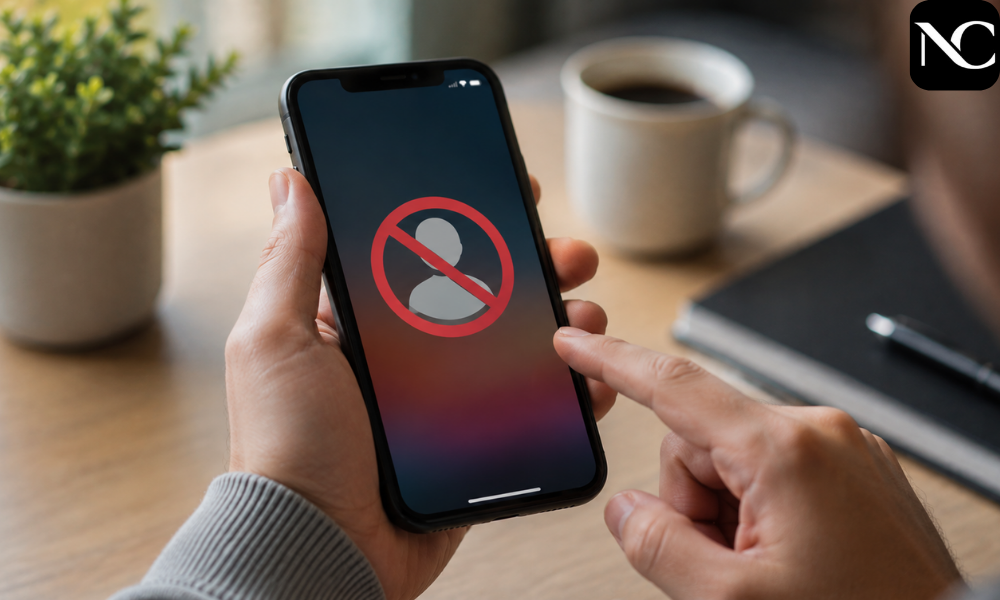
How to See Blocked Numbers on iPhone (2026 Guide)
If you’ve ever wondered exactly who you’ve silenced over the years, you’re far from alone. Learning how to see blocked numbers on iPhone matters more than most people realize, especially since Apple keeps relocating this setting with nearly every major iOS release. What used to be a simple tap under Settings > Phone has shifted more than once, leaving even longtime iPhone owners confused about where their blocked list actually lives today.
This guide walks through exactly where the blocked contacts list sits right now, how to view it properly, how to unblock or add numbers when needed, and what to do if the setting seems to have disappeared entirely from your device. Whether you’re troubleshooting a missing contact, doing routine digital housekeeping, or simply curious, every step below is laid out clearly so you never have to guess twice.
Where the Blocked Contacts Setting Lives in iOS
Apple has moved this feature across several iOS versions, which explains why so many users report searching for it without success. In current builds, the correct path is Settings > Apps > Phone > Blocked Contacts, a noticeable change from the older, more direct Settings > Phone route that longtime users still instinctively expect to find on their device.
Depending on which iOS version your phone is currently running, you might instead see this option nested under Settings > Privacy & Security > Blocked Contacts. If you’re trying to figure out how to see blocked numbers on iPhone and neither path looks familiar right away, checking your current software version first can save considerable time and unnecessary frustration. The reassuring part is that no matter where Apple tucks it away next, the underlying blocked list itself remains shared across Phone, FaceTime, and Messages.
Viewing Your Blocked Numbers Step by Step
Here’s the most reliable method for checking your list on an up-to-date iPhone. Open the Settings app, scroll down until you see Apps, tap it, then select Phone, and finally tap Blocked Contacts to reveal every number and email address you’ve blocked over the years. The entire process takes less than thirty seconds once you know exactly where to look.
If Apps doesn’t appear anywhere in your Settings menu, there’s no need to panic. Older or newer iOS versions may place this same option under Privacy & Security instead, or occasionally directly beneath Phone itself. Testing each path individually remains the fastest way to confirm how to see blocked numbers on iPhone on your specific software version, rather than relying on outdated screenshots or forum posts describing an interface Apple has since redesigned.
Checking Blocked Contacts Through FaceTime or Messages
Because the blocked list is fully synced across Apple’s communication apps, you don’t have to rely solely on the Phone app to review it. Navigating instead to Settings > Apps > FaceTime > Blocked Contacts, or Settings > Apps > Messages > Blocked Contacts, pulls up the exact same list you’d see through the standard Phone menu, with no differences whatsoever between the three.
This alternate route proves especially handy if you originally blocked someone from within a text conversation or a FaceTime call rather than a traditional phone call. Regardless of which app you happen to start from, the outcome stays identical: one unified blocked list quietly governing calls, messages, and video chats together. This shared design also means you never need to remember exactly where you blocked someone in the first place.
Unblocking a Number the Right Way
Once you’ve located your list, removing someone from it takes only a couple of quick taps. Swipe left on the contact’s name or number within the Blocked Contacts screen, then tap the red Unblock button that appears to instantly restore their ability to call, text, or FaceTime you again without any further action required on your part.
Alternatively, tap Edit in the top-right corner of the Blocked Contacts screen, tap the red minus icon beside the specific entry you want removed, and confirm by tapping Unblock. Either method works equally well and produces the same result. Because the list is shared system-wide, unblocking a number here automatically restores access across Phone, FaceTime, and Messages simultaneously, saving you from repeating the process three separate times.
Blocking a New Number When You Need To
Adding someone to your blocked list is just as straightforward as removing them once you know the process. From within the Blocked Contacts screen, scroll all the way to the bottom and tap Add New, then select the contact or number you’d like to silence going forward from your existing address book.
There’s also a faster route available if you’re reacting to an unwanted call in real time. Open the Recents tab within the Phone app, tap the number in question, scroll down the contact card, and select Block this Caller. Both methods ultimately add the entry to the exact same shared list, so it genuinely doesn’t matter which approach you choose depending on the situation you’re facing.
Spotting Missed Calls From Blocked Numbers
One frequent point of confusion is that blocked calls don’t show up as missed calls or trigger any notifications the way ordinary calls typically do. iOS silently declines them in the background, which means your Recents list won’t display any evidence whatsoever that a blocked caller even attempted to reach you throughout the day.
The only truly reliable way to confirm whether a specific number is currently on your list is to open Blocked Contacts directly and scan through it manually. There’s no dedicated blocked-call log or hidden history feature built into iOS at this time, so if you suspect a number has been blocked, checking the settings list itself remains the definitive and only accurate answer.
Why the Setting Keeps Moving Between Updates
Frustration around this particular feature is genuinely widespread, and online discussions are full of users asking whether a recent update quietly relocated things once again. That frustration is entirely valid — Apple has redesigned the Settings app layout more than once in recent years, shifting where blocked contacts live without much advance warning or clear communication to everyday users.
If you’re still struggling to figure out how to see blocked numbers on iPhone after trying every path mentioned above, the quickest workaround is the Settings search bar itself. Typing “Blocked” into the search field at the very top of Settings jumps you straight to the relevant option instantly, regardless of which iOS version or menu structure your particular device happens to be running at the moment.
Read More: https://newscourt.co.uk/solica-casut/
FAQs
How do I see all my blocked numbers on iPhone?
Go to Settings > Apps > Phone > Blocked Contacts, or Settings > Privacy & Security > Blocked Contacts on some iOS versions, to view your complete list of blocked numbers and email addresses in one place.
Why can’t I find “Blocked Contacts” under Settings > Phone anymore?
Apple has moved this setting in recent iOS updates, nesting it under Apps > Phone or Privacy & Security depending on your software version. Using the Settings search bar is the fastest way to locate it.
How do I unblock someone on my iPhone?
Open Blocked Contacts, swipe left on the entry, and tap Unblock, or tap Edit, select the red minus icon beside the number, and confirm the removal to restore their access.
Can I see missed calls from blocked numbers?
No, blocked calls are silently declined and never appear in your Recents or missed call notifications. Checking the Blocked Contacts list directly is the only way to confirm a number is blocked.
Does iPhone keep a call history log for blocked numbers?
There’s no separate log for blocked calls built into iOS. The Blocked Contacts list remains the only place to verify exactly which numbers you’ve silenced over time.
Is the blocked list the same for Phone, Messages, and FaceTime?
Yes, blocking or unblocking a number updates the list across all three apps automatically, since they all draw from one unified, shared blocked contacts list.
How do I block a new number without adding it as a contact?
From the Phone app’s Recents tab, tap the number, scroll down, and select Block this Caller — there’s no need to save it as a contact first.
Final Thoughts
Finding your blocked contacts on iPhone doesn’t have to feel like a scavenger hunt once you understand exactly where to look. Whether your device points you toward Settings > Apps > Phone, Settings > Privacy & Security, or the older, more familiar Settings > Phone path, the blocked list itself stays consistent and fully shared across every calling and messaging app you own.
Now that you know how to see blocked numbers on iPhone, you can confidently review, add, or remove entries whenever the need arises. Since Apple has a well-documented track record of relocating this setting with future updates, bookmarking this guide, or simply remembering the handy Settings search trick, will save you real time and frustration down the road.


One thought on “How to See Blocked Numbers on iPhone (2026 Guide)”